Managing an active social media profile, photography portfolio, or digital agency requires operational speed. If you are scheduling 10-slide Instagram carousels, publishing daily TikTok slideshows, or uploading fresh Etsy catalogs, manually cleaning files one-by-one is an enormous waste of time.
Here is the complete, zero-knowledge batch workflow to sanitize dozens of files simultaneously in under a minute.
The Carousel Contamination Problem
A critical mistake many creators make is assuming Instagram inspects each carousel image individually:
The All-or-Nothing Tagging Rule
If you upload a 10-slide carousel to Instagram, and even one single slide contains a C2PA tag (such as an infographic element made with Adobe Firefly or a retouched portrait), Meta will apply the "AI Info" badge to the entire post.
To avoid profile-wide penalties, you must establish a habit of running every batch through a local metadata stripper before hitting publish.
Desktop Batch Workflow (Drag, Clean, & ZIP)
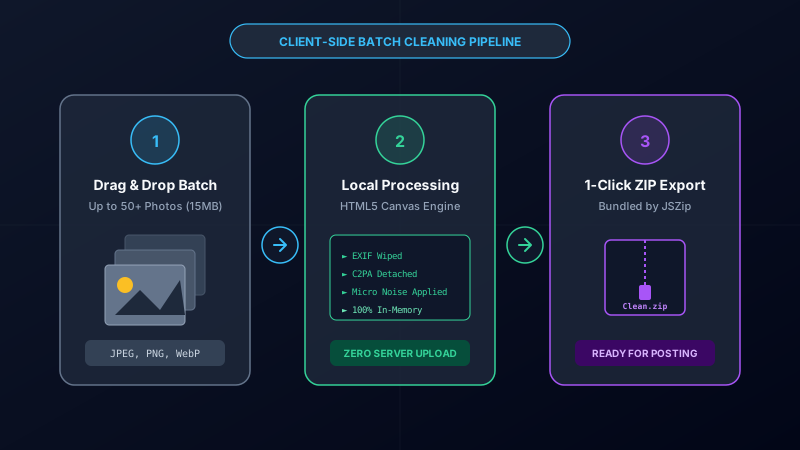
Here is how to clean an entire album on PC or Mac using Remove AI Label:
- Open the Cleaner: Navigate to Remove AI Label in any modern browser (Chrome, Edge, Firefox, Brave, Safari).
- Drag and Drop Your Entire Folder: Highlight up to 50+ photos (JPG, PNG, or WebP up to 15MB each) and drop them directly onto the large upload area.
-
Inspect Hidden Metadata: The tool automatically lists each image on its own preview card and parses any hidden camera EXIF, GPS coordinates, or C2PA tags using the
exifrengine. - Click "Clean All Images": Tap the bright green Clean All Images button in the batch action bar. The app sequentially processes each photo locally in your browser memory.
-
Download All as ZIP: Once cleaning completes, click Download All (ZIP). A bundled archive named
Cleaned_Images.zipwill download instantly to your machine.
Try Batch Cleaning on Your Photos Now
Zero installations, zero cloud uploads. Strip metadata from 50+ photos directly on your device.
Batch Clean Photos FreeMobile Workflow (iPhone Safari & Android Chrome)
You don't need a computer to sanitize your files. Because Remove AI Label is fully responsive, you can clean pictures right from your phone's camera roll:
- Open
removeailabel.orgin Safari on iOS or Chrome on Android. - Tap the Select Pictures button and choose Photo Library.
- Select multiple photos from your recent album.
- Tap Clean All Images, then tap Download All (ZIP).
- On iOS, tap the downloaded ZIP in the Safari download manager and choose "Uncompress" in the Files app. All clean images are immediately ready for Instagram or TikTok.
Erasing Corner Watermarks on Individual Cards
If any specific photo in your batch has a visible generator logo or stamp:
- Find that image's preview card before clicking clean.
- Use your mouse or finger to brush over the watermark on the left-side preview canvas. A subtle red mask will appear over the mark.
- Click Clean Image. The tool applies localized neighbor-pixel box blur inpainting over the masked coordinates, removing the watermark before re-rendering.
How Quality & Transparency Are Maintained
Many online compression tools degrade image quality to save bandwidth. Because Remove AI Label processes files locally:
- JPEGs are exported at 92% quality—the optimal standard that eliminates artifacts while remaining well within social media compression thresholds.
- PNGs are exported as lossless 24-bit PNGs, completely preserving transparent cutouts, stickers, and logos.
- Dimensions remain exactly identical to your original source file.